
CHROME WEB STORE · INSTALL GUIDE
Install Chiko AI in 5 simple steps.
Follow along step by step to add Chiko AI to Chrome, pin it to your toolbar, and run your first in-browser synthesis.
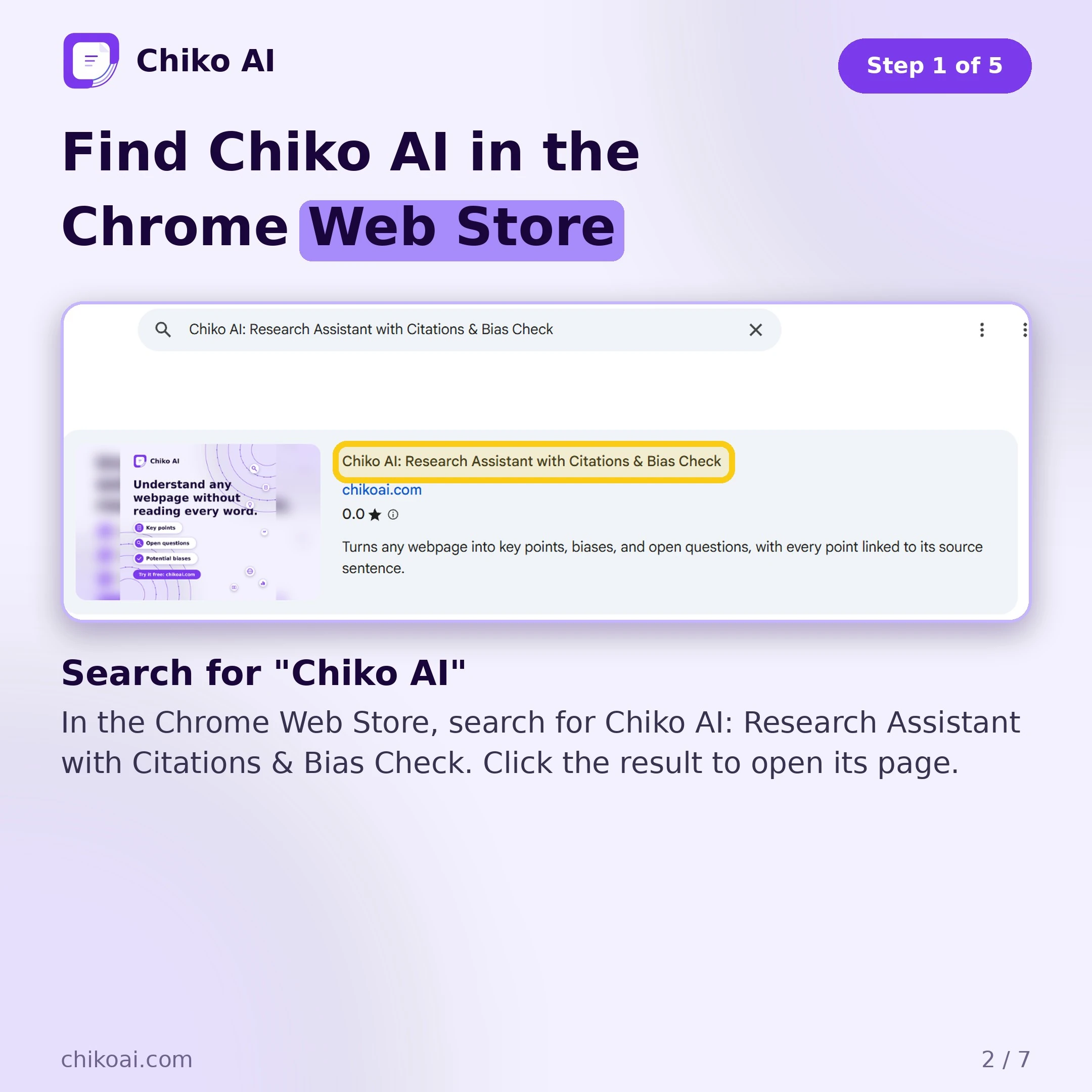
Find Chiko AI in the Chrome Web Store
In the Chrome Web Store, search for "Chiko AI: Research Assistant with Citations & Bias Check" or use our direct store link.
Click the Chiko AI listing to open the official extension page.
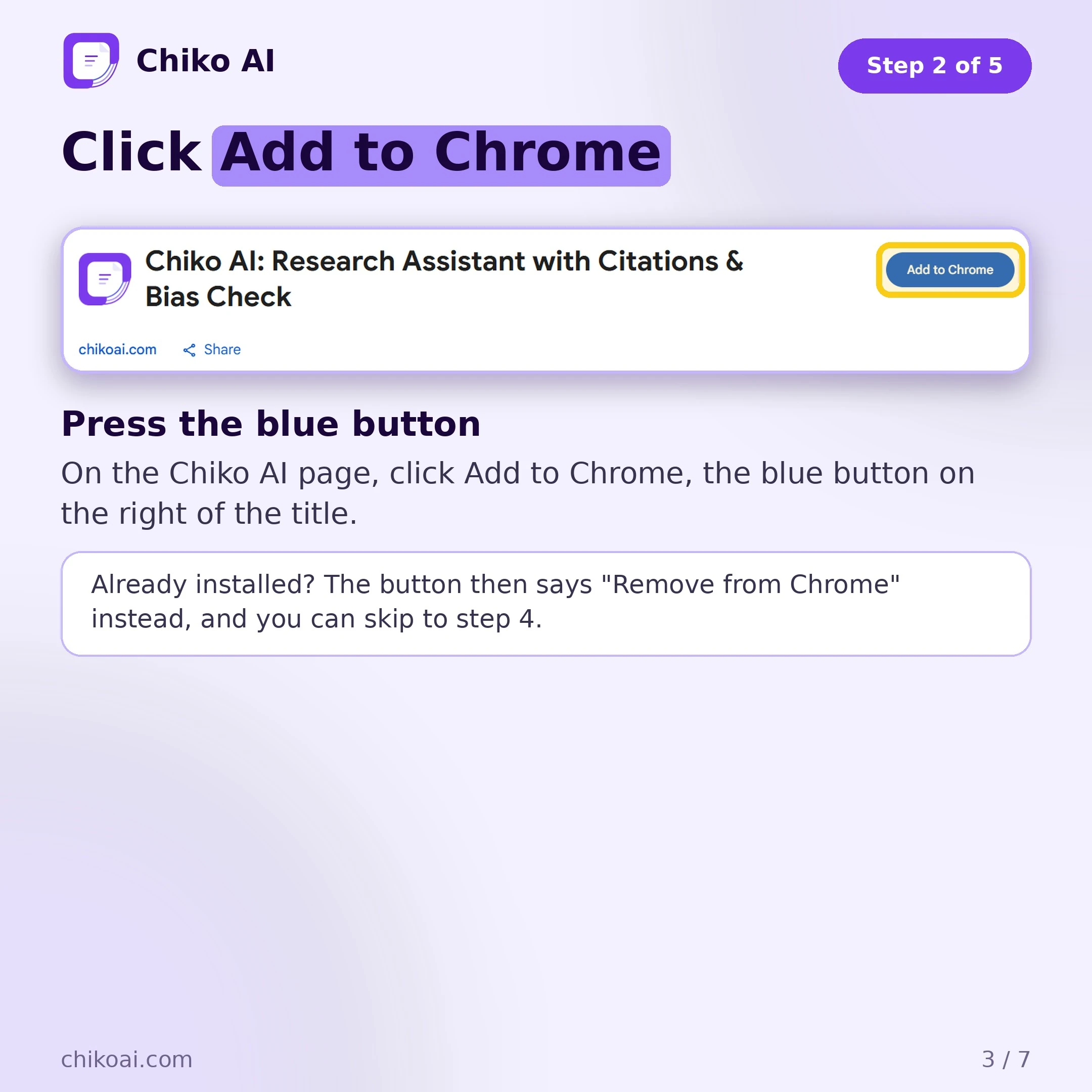
Click Add to Chrome
On the Chiko AI page, click the blue Add to Chrome button to the right of the extension title.
Already installed? The button shows Remove from Chrome instead, so you can skip straight to pinning.
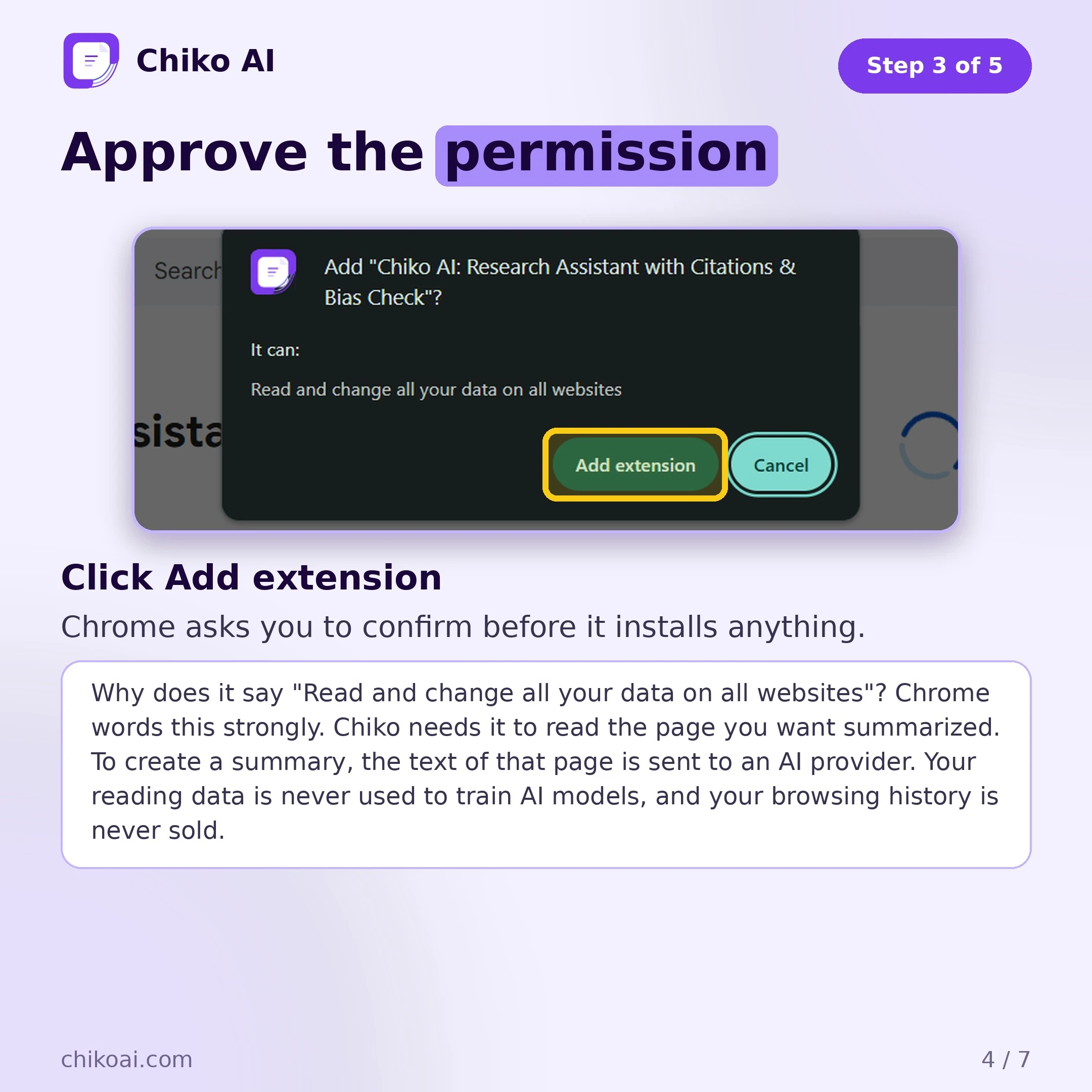
Approve the permission
Click Add extension when Chrome asks you to confirm installation.
Chrome requires page access permission so Chiko can read only the webpage you choose to summarize. Your reading data is never sold or used to train AI models.
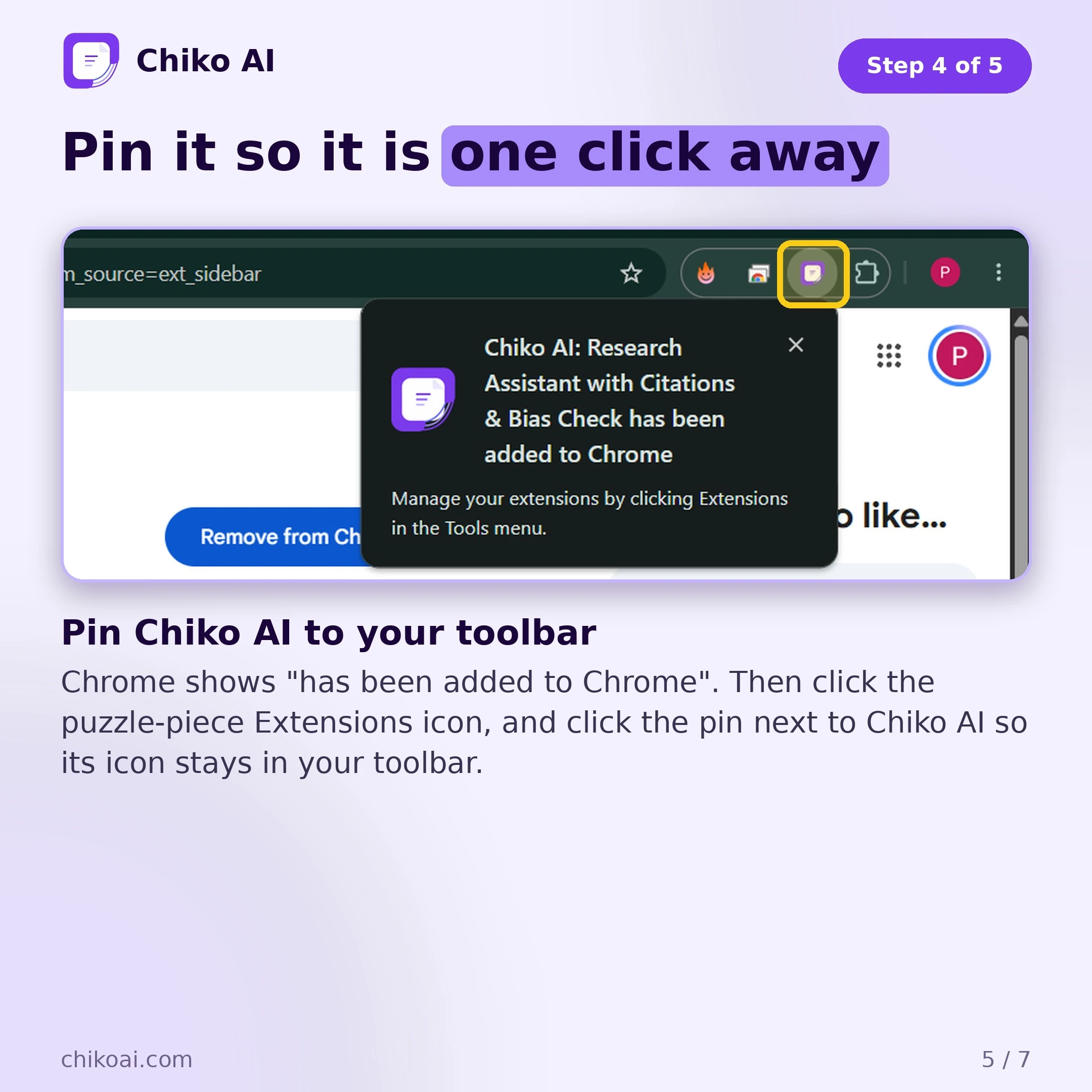
Pin it so it is one click away
Click the puzzle-piece Extensions icon in Chrome and pin Chiko AI to keep it visible in your toolbar.
Once Chrome shows that Chiko AI has been added, pinning puts the side panel one click away.
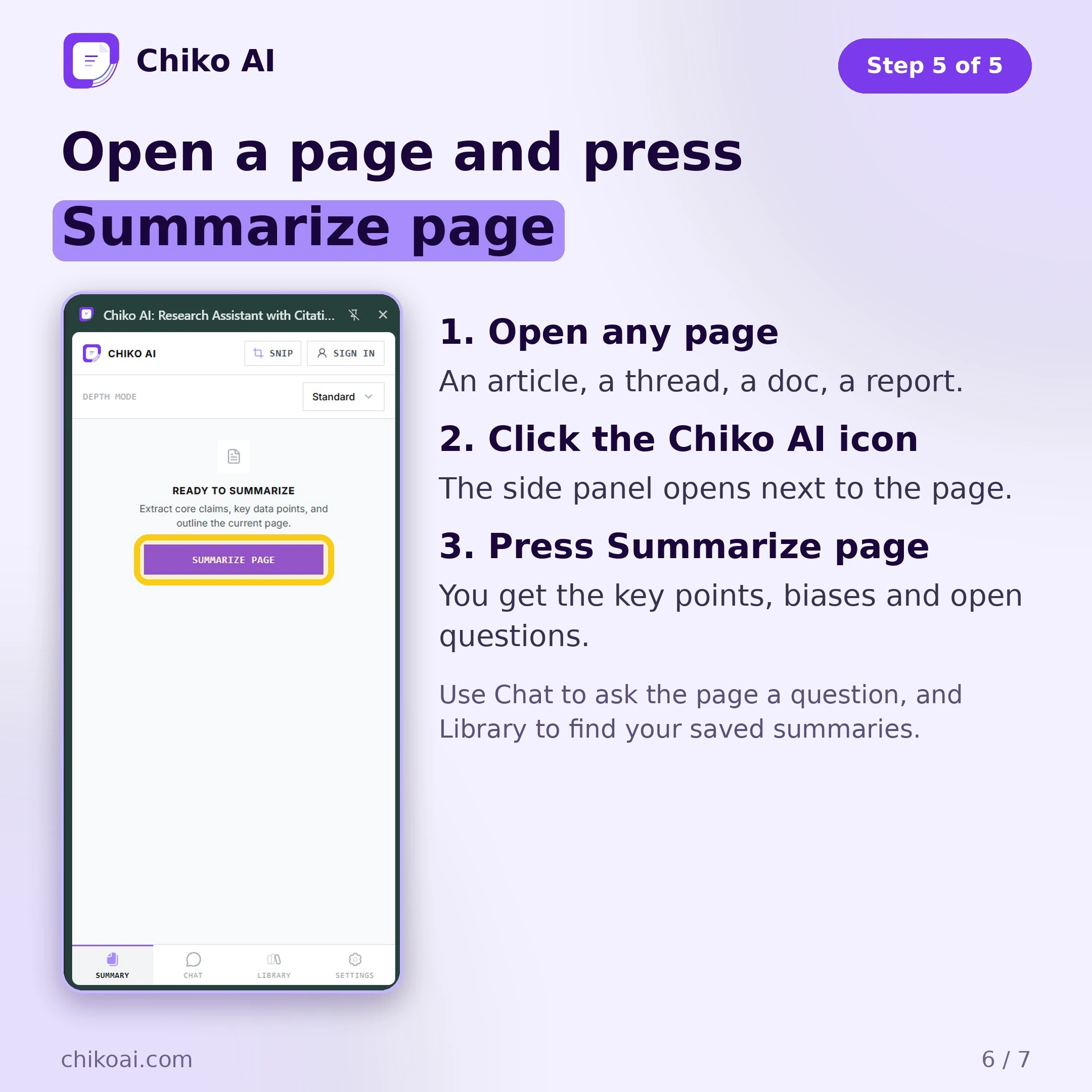
Open a page and press Summarize page
Open any webpage, click the Chiko AI icon to open the side panel, and press Summarize page.
Review key points, open questions, and biases, then use Chat to ask follow-up questions or Library to browse saved summaries.
You are ready to read faster
Try it on a long page, thread, article, or technical doc you have been putting off.
Need help anytime? Reach us at support@chikoai.com.
Install from the Chrome Web Store
Free for 3 summaries every day. Works on any article, thread, doc, or report.